Loading...
Loading...
Loading...
Loading...
Loading...
Loading...
Loading...
Loading...
Loading...
Loading...
Loading...
Loading...
Loading...
Loading...
Loading...
Loading...
Loading...
Loading...
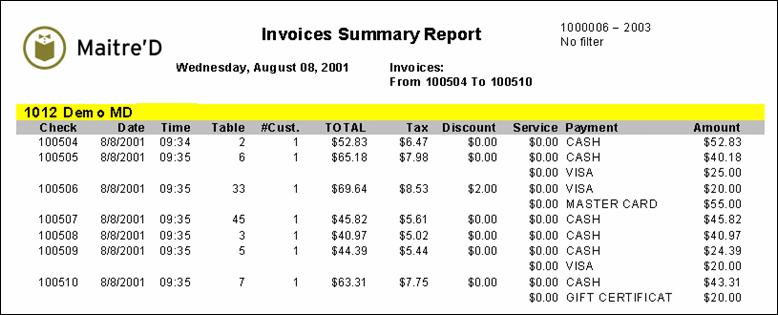
Maitre'D's invoice summary search report shows you a summary of the invoices according to your specifications. From the report filter window, select the date and time range, amounts, invoices, tables, employees, items, promotions, media, Revenue Centers and modes to be included in the report.
The following is a sample of the invoice summary search report:
Check:
Check number.
Date:
Date the check was printed.
Time:
Time the check was printed.
Table:
Table number.
# Cust.:
Number of customers on the check.
TOTAL:
Total of the check, including taxes, discounts and service charge.
Tax:
Total of the taxes applied on the check.
Discount:
Total of the discounts applied on the check.
Service:
Service charge applied on the check.
Payment:
Media type used to settle the check.
NOTE: There can up to three media types per check.
Amount:
Amount applied to each media type.
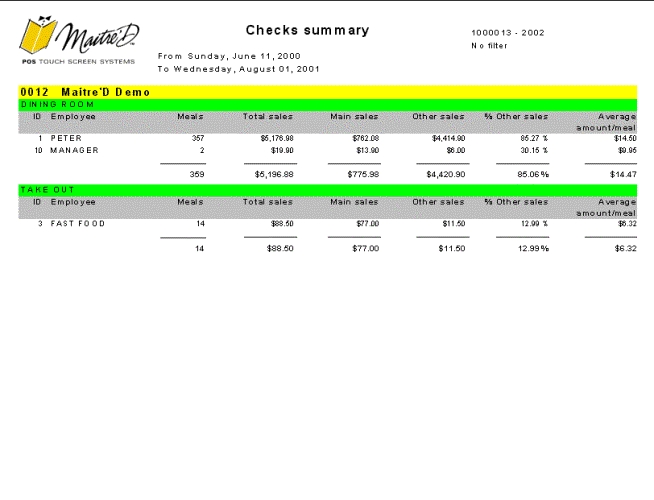
Maitre'D check summary report provides you with a summary of the total check sales (gross sales before any discounts, service charge and taxes), meal sales and an average $ amount per check for specific employees and Revenue Centers. From the report filter window, select the appropriate date and time range, Revenue Center and employees to be included in the report. The following is a sample of the check summary report:
Id
Employee code from POS Control module
Employee:
Employee name
Meals:
Amount of meal served. The option must be activated and configured to get a figure in that field.
Total sales:
Total invoiced sales for the selected period of time excluding discounts, service charge, and gratuity.
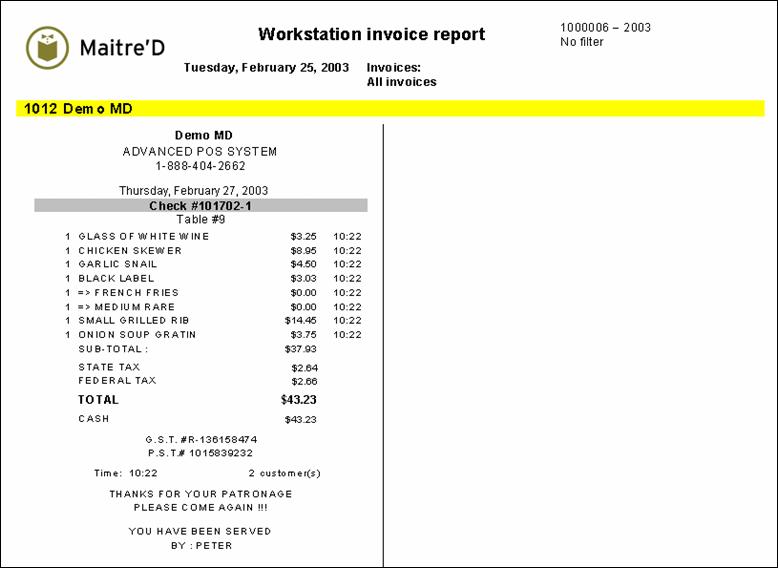
Maitre'D's invoice detail search report shows you the actual detailed invoice according to your specifications. It helps to retrieve and reprint specified invoices. This report does not include invoices from the current day (operating day). From the report filter window, select the date and time range, amounts, invoices, tables, employees, items, promotions, media, Revenue Centers and modes to be included in the report.
The following is a sample of the invoice detail search report:
It reports the invoice in the same layout format it was printed out at the workstation. In addition, it also reports the time the item was ordered.
NOTE: If a sales item description or the server name has been changed since an original check was printed, this report will show the new sales item description or server name. To see the original sales item or server name, use the Archive Invoice Search report instead. Also, the reference number of the original re-opened check appears on the second equivalent but negative check.
Total meal sales for the selected period of time excluding discounts, service charge, and gratuity.
Other sales:
Total sales less meal sales for the selected period of time excluding discounts, service charge, and gratuity.
% Other sales:
Other sales divided by the Total sales, multiply by 100
Average amount / check:
Total sales divided # Meals
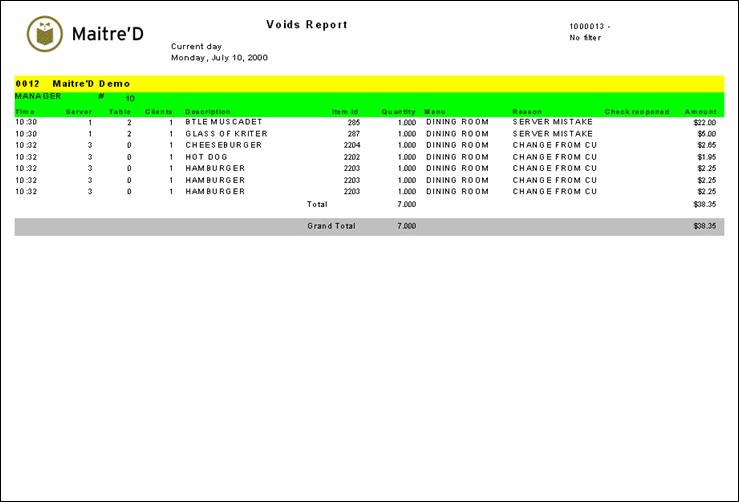
Maitre'D voids report provides you with a list of all the voids for the selected date or period of time per employee. From the report filter window, select the appropriate date or period of time, Revenue Center and employees to be included in the report. The following is a sample of the voids report:
Employee name and server # from the POS Control module who did the void
Time:
The time the item was voided
Server:
The server # (from POS Control module) which voided the item
Table:
Table #
Clients
Amount of customers at the table
Description:
Revenue Center item description
Item Id:
Revenue Center item #
Quantity:
Voided quantity
Revenue Center:
Revenue Center name, revenue center the item was originally ordered from
Reason:
Void reason.If blank there may not be any void reason set up in your POS Control module or a void table occurred from the workstation or from the Back-Office.
Check reopened:
if a check mark in that field then Maitre'D did a void under table 0 to void all the items of a "reopened check", then Maitre'D let the user create the new check with the appropriate correction.
Amount:
$ Amount of the item voided
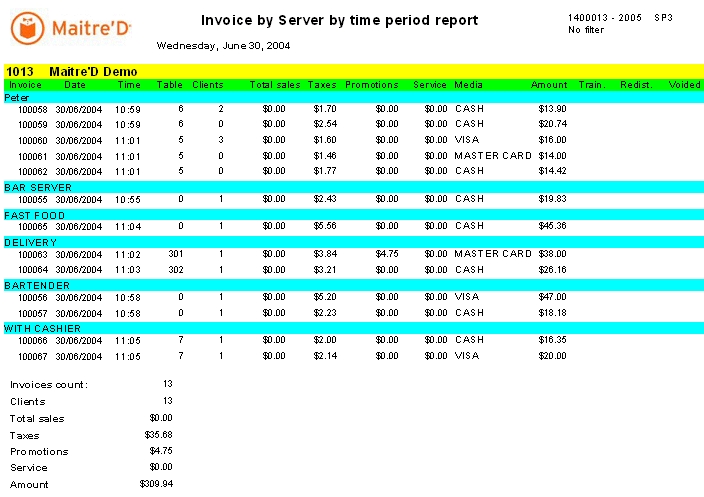
Maitre'D by server by time period report is an invoice report that provides all invoices (checks) for a specific time frame, separated by server. From the report filter window, select the date and time range and employees to be included in the report. The following is a sample of the by server by time period report:
Invoice:
The check number
Date:
Date of the transaction
Time:
The time the check was printed out for the first time at the workstation
Table:
The table #
Clients:
The number of customer on the check
Total sales:
The sub total of the check, excluding discounts, service charge, gratuity.
Taxes:
Total tax applied to the check
Promotions:
Total discount applied to the check
Service:
Total service charge applied to the check
Media:
The media type used to close the check, if this field is blank than the check has been redistributed or the table was voided
Amount:
Check's total: the amount charge to the media type
Train.:
The check was done by an employee under training
Redist.:
The check was redistributed: transfer, reprinted with a different amount of customers, checks
Voided:
A table with a printed check was voided from the workstation or from the Back-Office
At the bottom of the last page you get some totals. The totals do not include any information from checks done by an employee under training, redistributed checks or voided tables
Invoices count:
Total amount of invoices (checks) for the selected period of time.
Clients:
Total invoices clients for the selected period of time.
Total sales:
Total invoices sales for the selected period of time excluding discounts, service charge, and gratuity.
Taxes:
Total invoices taxes for the selected period of time.
Promotions:
Total invoices discounts for the selected period of time
Service:
Total invoices service charges for the selected period of time
Amount:
Total invoices gross sales for the selected period of time.
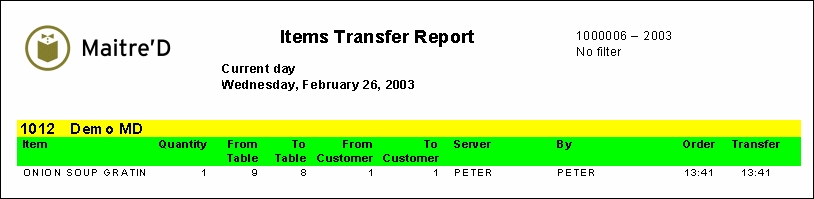
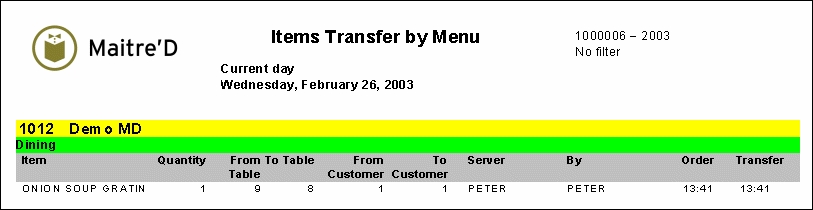
Maitre'D items transfer report provides you with a list of all items transfer done from one table and/or client to another for a selected date or period of time. From the report filter window, select the appropriate date, employees and items to be included in the report. The following is a sample of the items transfer report:
Item:
Sales item description.
Quantity:
Amount of sales items transferred.
From Table:
Table number from where the sales item was transferred.
To table:
Table number where the sales items was transferred to.
From Customer:
Client number from where the sales item was transferred.
To Customer:
Client number where the sales items was transferred to.
Server:
Employee who had originally ordered the sales item on the wrong table and client.
By:
Employee who performed the item transfer.
Order:
Time when the sales item was originally ordered.
Transfer:
Time when the sales item was transferred to the new table and client.
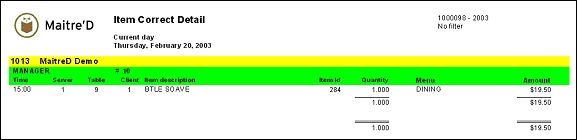
Maitre'D item correct detail report provides you with a list of all the items that were removed from server's tables by manager before they were ordered for the selected date or period of time per manager. From the report filter window, select the date, revenue center and employees to be included in the report. The following is a sample of the item correct detail report:
Name and number (from POS Control) of the manager who removed the item.
Time:
The time the item was removed.
Server:
The server # (from POS Control) for whom the item was removed.
Table:
Table number on which the item was removed.
Clients
Amount of customers at the table
Item Description:
Sales item description
Item Id:
Revenue center number (from POS Control) of the removed item.
Quantity:
Quantity of items removed.
Revenue Center:
Revenue center name, revenue center the item was originally ordered from.
Amount:
$ Value of the item removed.
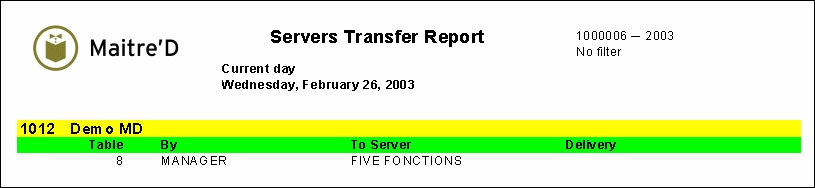
Maitre'D servers transfer report provides you with a list of all items transfer done from one server to another for a selected date or period of time. From the report filter window, select the appropriate date and employees to be included in the report. The following is a sample of the servers transfer report:
Table:
Table number that was transferred to another server.
By:
Employee who performed the table transfer.
To Server:
Employee who the table was transferred to.
Delivery:
If this was an automatic server transfer from a delivery phone operator to a delivery driver, the delivery column will be checked.
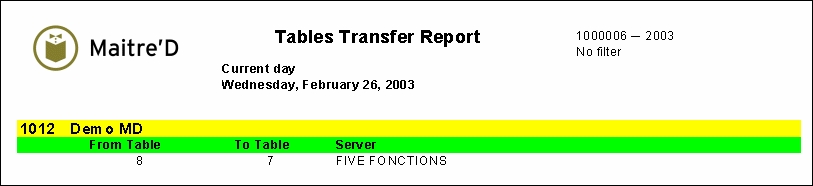
Maitre'D tables transfer report provides you with a list of all tables transfer done from one table number to another for a selected date or period of time. From the report filter window, select the appropriate date and employees to be included in the report. The following is a sample of the tables transfer report:
From Table:
Original table number that was transferred to another table number.
To Table:
New table number that was transferred from another table number.
Server:
Employee who is responsible for the table.
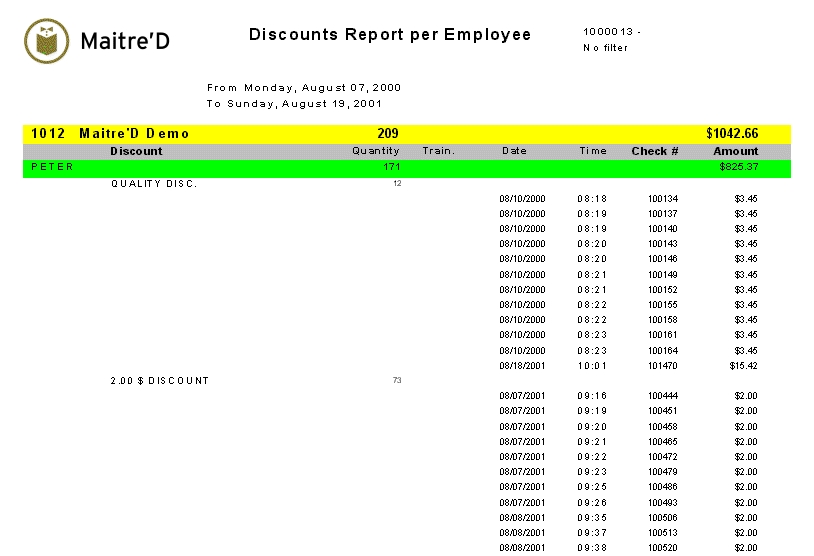
Maitre'D's Discount report per employee report, provides you with a list of all discounts made per employee for the selected date or date range. It gives the date and time the discount was applied to the check. From the report filter window, select the appropriate date and date range, promotion (discount) and employees to include in the report.
The following is a sample of the Discount per Employee report:
Discount
Discount description.
Quantity
Number of discounts applied
Train.
Discount done on a Training check.
Date
The Date the discount was applied to the check.
Time
The Time the discount was applied to the check.
Check#
Invoice, check number.
Amount
Discounted $ amount.
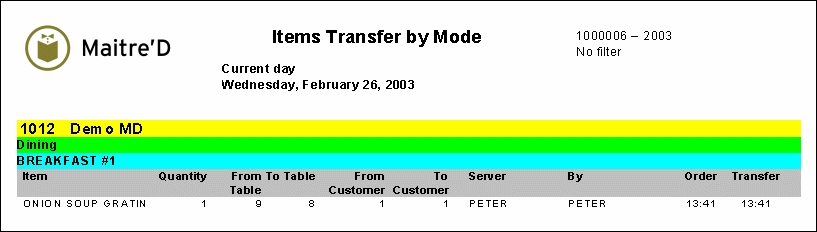
Maitre'D items transfer by mode report provides you with a list of all items transfer done from one table and/or client to another by mode for a selected date or period of time. From the report filter window, select the appropriate date, employees, items, Revenue Centers and modes to be included in the report. The following is a sample of the items transfer by mode report:
For each Revenue Center and mode, this report provides you with:
Item:
Sales item description.
Quantity:
Amount of sales items transferred.
From Table:
Table number from where the sales item was transferred.
To table:
Table number where the sales items was transferred to.
From Customer:
Client number from where the sales item was transferred.
To Customer:
Client number where the sales items was transferred to.
Server:
Employee who had originally ordered the sales item on the wrong table and client.
By:
Employee who performed the item transfer.
Order:
Time when the sales item was originally ordered.
Transfer:
Time when the sales item was transferred to the new table and client.
Maitre'D items transfer by Revenue Center report provides you with a list of all items transfer done from one table and/or client to another by Revenue Center for a selected date or period of time. From the report filter window, select the appropriate date, employees, items and Revenue Centers to be included in the report. The following is a sample of the items transfer by Revenue Center report:
For each Revenue Center, this report provides you with:
Item:
Sales item description.
Quantity:
Amount of sales items transferred.
From Table:
Table number from where the sales item was transferred.
To table:
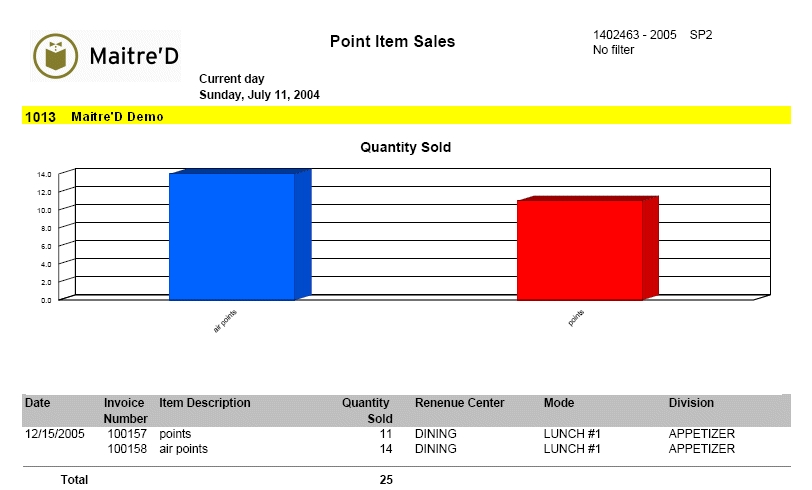
Maitre'D point item sales report provides a list of invoice numbers, point item description and quantities sold. From the report filter window, select the appropriate revenue centers, divisions and items to be included in the report.
Here is an example of the point item sales report:
From Customer:
Client number from where the sales item was transferred.
To Customer:
Client number where the sales items was transferred to.
Server:
Employee who had originally ordered the sales item on the wrong table and client.
By:
Employee who performed the item transfer.
Order:
Time when the sales item was originally ordered.
Transfer:
Time when the sales item was transferred to the new table and client.
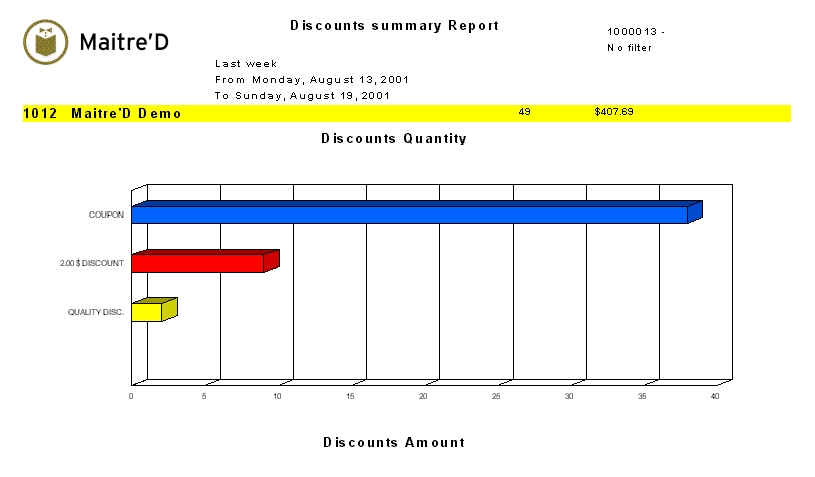
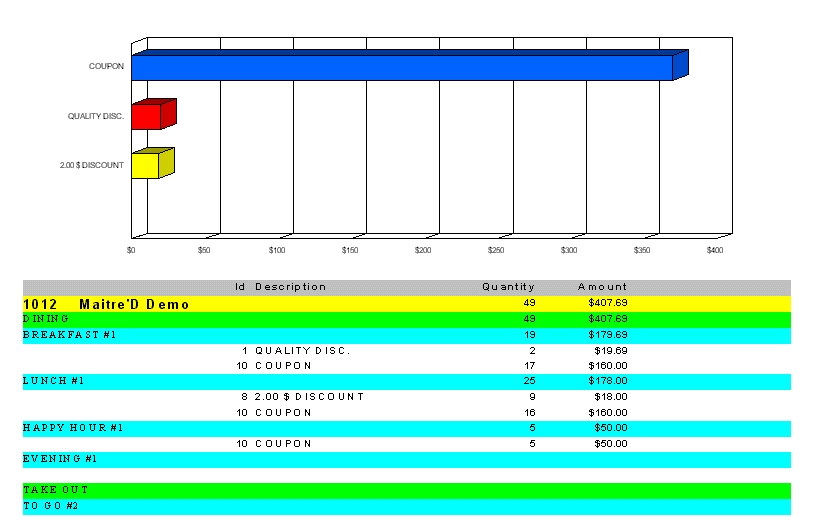
Maitre'D's Discount summary report provides you with a list of all discounts made for the selected date range. It gives the description, the number of discount and the amount the discount was applied. From the report filter window, select the appropriate date range, Revenue Center, mode, division, categories and promotion (discount) to include in the report.
The following is a sample of the Discount Summary report:
Mode
Mode of the workstation when the discount was applied
Id description
Discount description.
Quantity
Number of discounts applied.
Amount
Discounted $ amount.
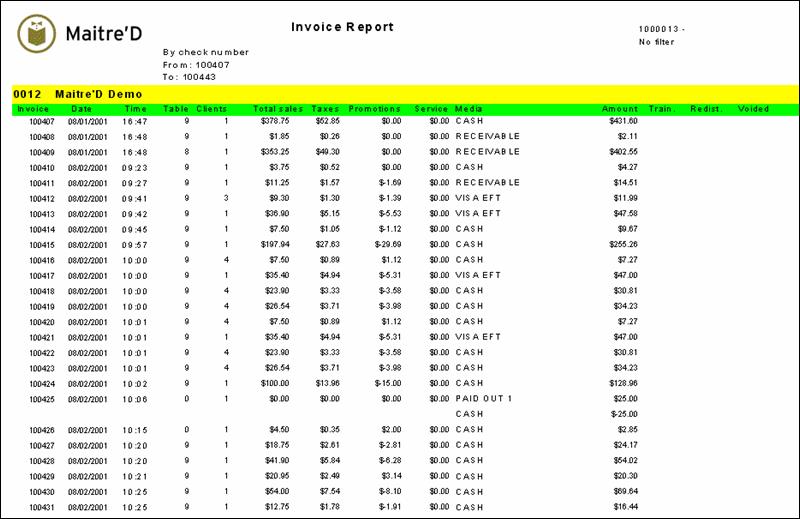
Maitre'D by number report is an invoice report that provides a list of the selected invoices (checks). From the report filter window, select the invoices and the employees to be included in the report. The following is a sample of the by number report:
Invoice:
The check number
Date:
Date of the transaction
Time
The time the check was printed out for the first time at the workstation
Table:
The table #
Clients:
The number of customer on the check
Total sales:
The sub total of the check, excluding discounts, service charge, gratuity.
Taxes:
Total tax applied to the check
Promotions:
Total discount applied to the check
Service:
Total service charge applied to the check
Media:
The media type used to close the check, if this field is blank than the check that has been redistributed or the table was voided
Amount:
Check's total: the amount charged to the media type
Train.:
The check was done by an employee under training
Redist.:
The check was redistributed: transferred , reprinted with a different amount of customer checks
Voided:
A table with a printed check was voided from the workstation or from the Back-Office
At the bottom of the last page you get some totals. The totals do not include any information from checks done by an employee under training, redistributed checks or voided tables
Invoice count:
Total amount of invoices (checks) for the selected period of time.
Clients:
Total invoiced clients for the selected period of time.
Total sales:
Total invoiced sales for the selected period of time excluding discounts, service charge, and gratuity.
Taxes:
Total invoiced taxes for the selected period of time.
Promotions:
Total invoiced discounts for the selected period of time
Service:
Total invoiced service charges for the selected period of time
Amount:
Total invoiced gross sales for the selected period of time.
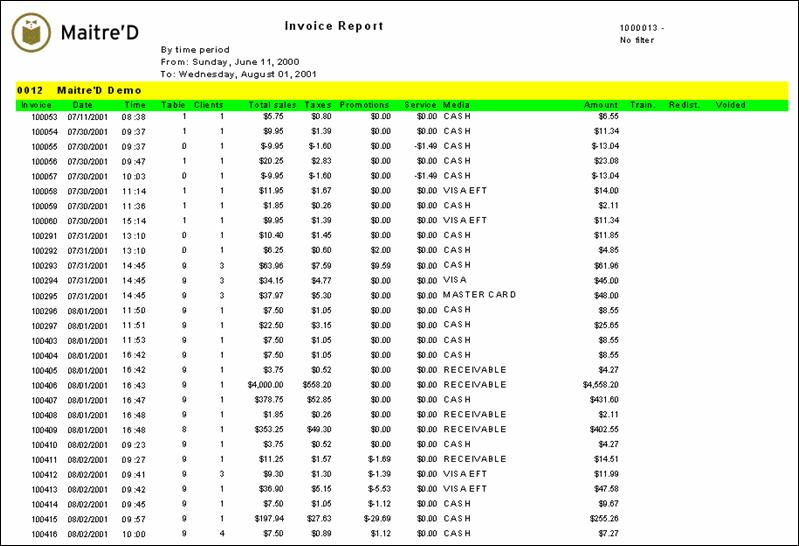
Maitre'D by time period report is an invoice report that provides all invoices (checks) for a specific time frame. From the report filter window, select the date and time range and employees to be included in the report. The following is a sample of the by time period report:
Invoice:
The check number
Date:
Date of the transaction
Time:
The time the check was printed out for the first time at the workstation
Table:
The table #
Clients:
The number of customer on the check
Total sales:
The sub total of the check, excluding discounts, service charge, gratuity.
Taxes:
Total tax applied to the check
Promotions:
Total discount applied to the check
Service:
Total service charge applied to the check
Media:
The media type used to close the check, if this field is blank than the check has been redistributed or the table was voided
Amount:
Check's total: the amount charge to the media type
Train.:
The check was done by an employee under training
Redist.:
The check was redistributed: transfer, reprinted with a different amount of customers, checks
Voided:
A table with a printed check was voided from the workstation or from the Back-Office
At the bottom of the last page you get some totals. The totals do not include any information from checks done by an employee under training, redistributed checks or voided tables
Invoices count:
Total amount of invoices (checks) for the selected period of time.
Clients:
Total invoices clients for the selected period of time.
Total sales:
Total invoices sales for the selected period of time excluding discounts, service charge, and gratuity.
Taxes:
Total invoices taxes for the selected period of time.
Promotions:
Total invoices discounts for the selected period of time
Service:
Total invoices service charges for the selected period of time
Amount:
Total invoices gross sales for the selected period of time.
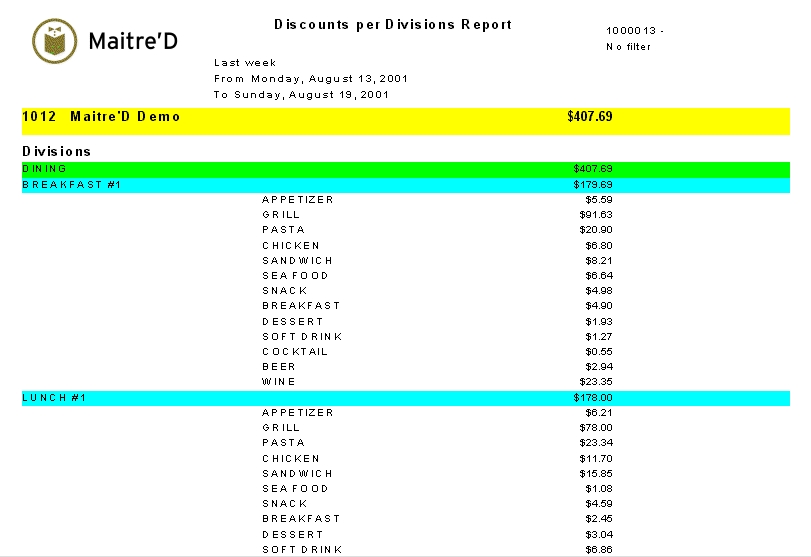
Maitre'D's Discount report per Divisions, provides you with a list of all discounts made per division for the selected date or date range. It gives the date and time the discount was applied to the check. From the report filter window, select the appropriate date and date range, promotion (discount) and employees to include in the report.
The following is a sample of the Discount per Divisions: